
WooCommerce: Display Scope, Soft Gating & Restricted Products
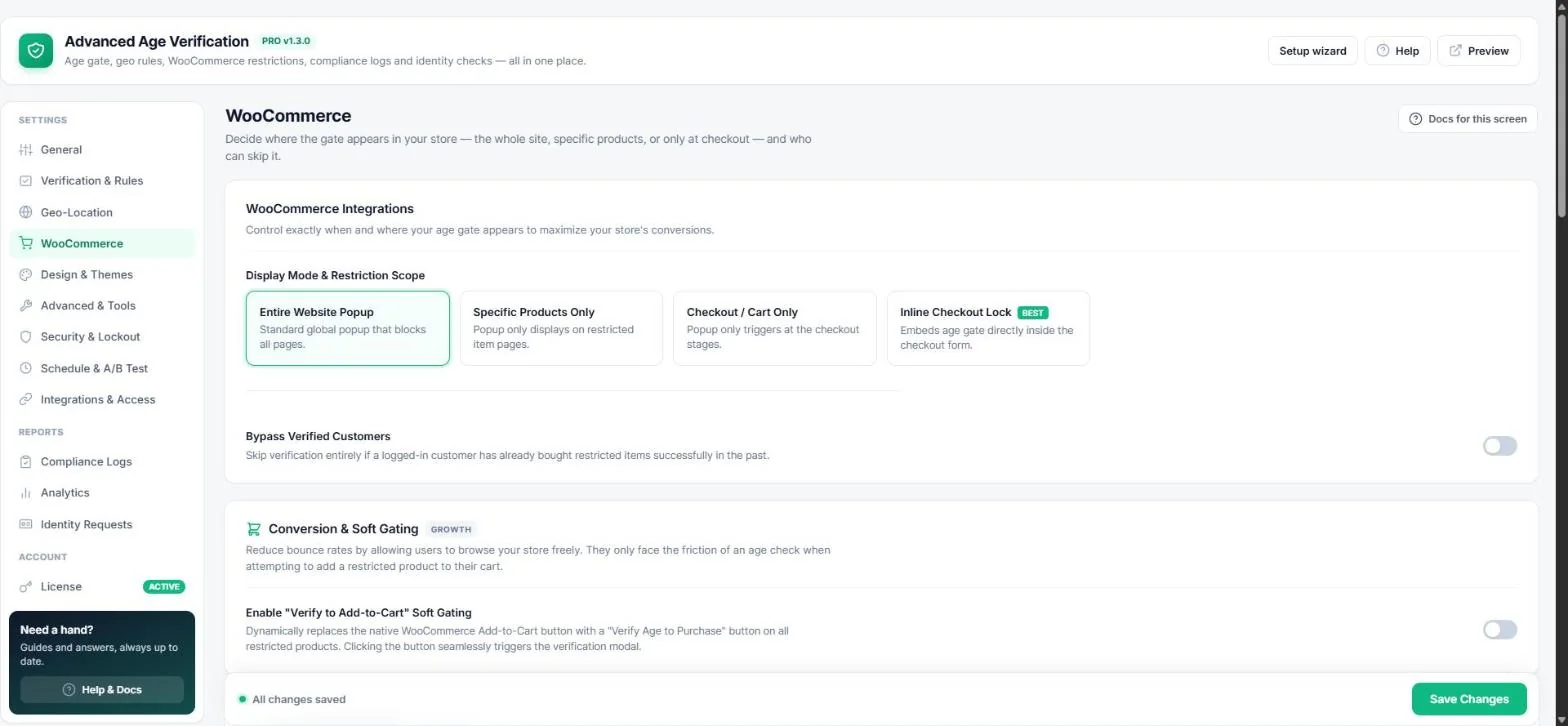
Decide where the age gate appears in your store — the whole site, specific products or only at checkout — and who can skip it. Open Age Verification → WooCommerce (visible when WooCommerce is active).
Choose a display mode
| Mode | When to use it |
|---|---|
| Entire website popup | Your whole shop sells age-restricted products. |
| Specific products only | Only some products are restricted — the popup shows on those product pages. |
| Checkout / cart only | Let everyone browse; ask for the age when they go to buy. |
| Inline checkout lock (best) | No popup at all — the age check sits inside the checkout form, which stays locked until it is passed. |
Pick the restricted products
Restrict by categories, tags, shipping classes or individual products. If you leave every list empty, all products are restricted.
Tip: Restrict thousands of products at once with WooCommerce's CSV import — set the column Meta: _avp_age_restricted to yes. The steps are shown at the bottom of the tab.
Soft gating: “Verify to add to cart”
Turn on Verify to Add-to-Cart to let visitors browse freely. On restricted products the Add to cart button becomes Verify age to purchase, which opens the age check. This keeps your bounce rate low.
Accounts, B2B and returning customers
- Bypass verified customers — logged-in customers who already bought restricted items are not asked again.
- Force account creation — guest checkout is disabled when a restricted product is in the cart, so every buyer can be identified.
- My Account verification tab — customers can verify in advance under My Account (re-save Settings → Permalinks if you get a 404).
- Exempt user roles — wholesale or B2B roles skip the gate site-wide.
Next: add a date-of-birth field to the checkout and hold orders for review — Checkout age check & adult signature.
Read next
Was this guide helpful?