
Analytics & Reports
Pro feature
Analytics Dashboard & Marketing Pixels (GA4, Meta)
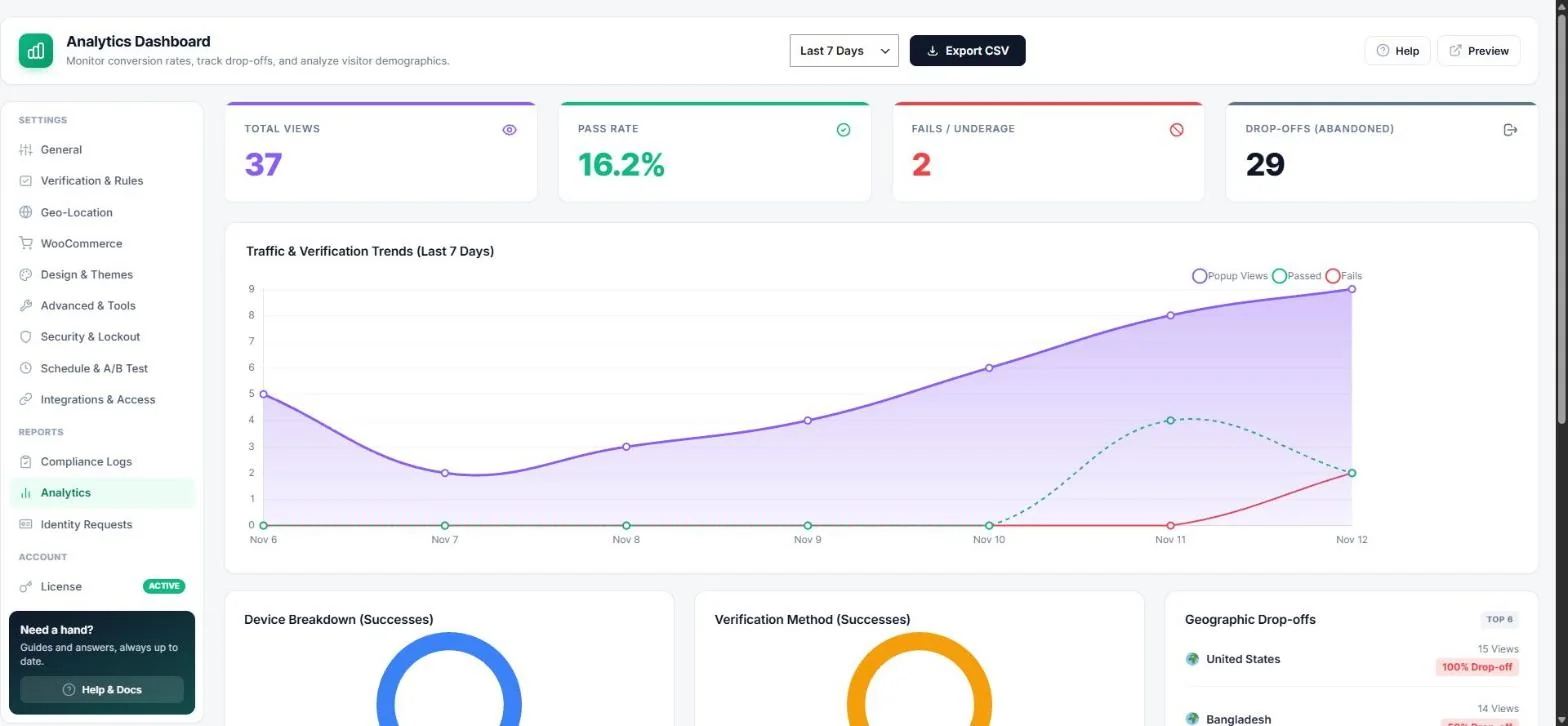
See how your age gate performs. Age Verification → Analytics shows how many visitors saw the gate, passed, failed or left.
Read the dashboard
| Metric | Meaning |
|---|---|
| Total views | How often the gate was shown. |
| Pass rate | Share of views that ended in a successful verification. |
| Fails / underage | Visitors who were too young or failed the check. |
| Drop-offs | Visitors who left without answering — watch this after design changes. |
Below you find the daily trend chart, a device breakdown, the verification methods used and the countries with the most drop-offs. Switch the period at the top and use Export CSV for your own reports.
Marketing pixels
- Turn on Google Analytics (GA4) to send an
age_gate_passedevent when a visitor passes. - Turn on Meta (Facebook) Pixel to send an
AgeGatePassedcustom event. - Click Save settings. Your GA4 / Meta code must already be on the site (for example via Site Kit or your theme).
Tip: Use the event to build remarketing audiences of verified adults, or as a conversion step in your funnel.
Note: Want to improve your pass rate? Test a second popup design with A/B testing, or pull the numbers into other tools with the REST API.
Read next
Was this guide helpful?
Thanks for your feedback!