
Install & Activate Advanced Age Verification Pro
Advanced Age Verification Pro adds a professional age gate to any WordPress or WooCommerce site — from a simple “I am 18+” popup to date-of-birth checks, real ID verification, country rules and a compliance audit trail. This guide gets you from download to a live, working age gate in about five minutes.
Requirements
- WordPress 5.0 or newer and PHP 7.4 or newer (PHP 8.x recommended).
- WooCommerce is optional — the store features switch on automatically when it is active.
- An active Pro license (you receive the key by email and in your customer dashboard).
Install the plugin
- Download the latest advanced-age-verification-pro.zip from your dashboard.
- In WordPress go to Plugins → Add New → Upload Plugin, choose the zip and click Install Now.
- Click Activate. A new Age Verification menu appears in the admin sidebar.
Note: Upgrading from the free version? Pro uses the same settings, so your popup carries over. Deactivate the free plugin once Pro is active.
Activate your license
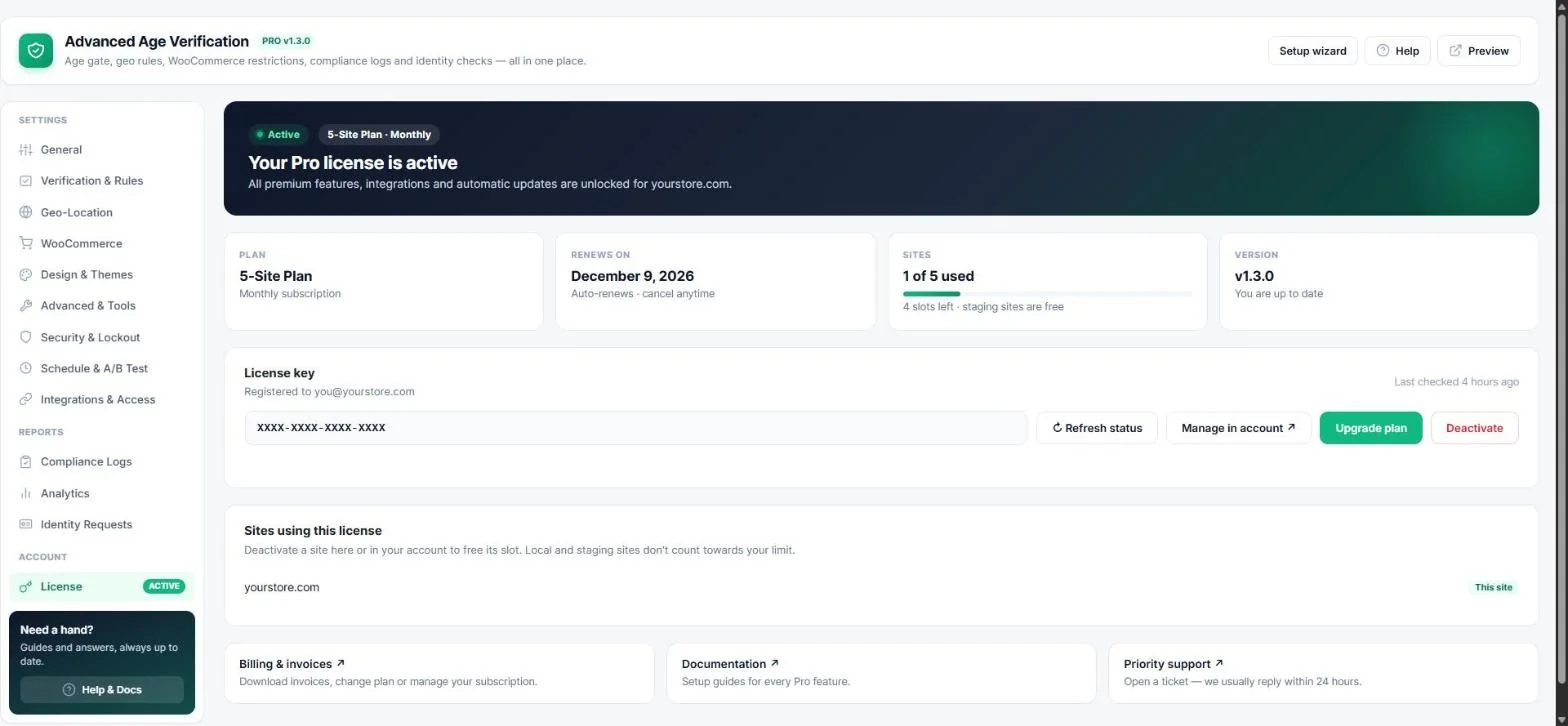
- Open Age Verification → License.
- Paste your license key and click Activate.
- The screen turns green and shows your plan, renewal date, how many sites you use and the installed version. Automatic updates are now on.
Tip: Local and staging sites do not count towards your site limit. Use Deactivate (here or in your account) to move a license to another site.
Run the setup wizard
Click Setup wizard at the top of any plugin screen. In a few short steps it asks how visitors should confirm their age, the minimum age, a colour style and your popup text — then saves everything for you. You can change every choice later.
Go live checklist
- Check the popup with Preview (top right) — it opens your site with the age gate forced on, even for administrators.
- Turn Test mode off on the General tab (while it is on, only administrators see the gate).
- Clear your page cache (WP Rocket, LiteSpeed, Cloudflare…) so visitors get the new version.
- Open your site in a private window to see it exactly like a new visitor.
Where to find help
Every settings screen has a Docs for this screen button that opens the matching guide, and the Help panel lists all guides inside WordPress. Still stuck? Open a support ticket.
Read next
Was this guide helpful?